Step 1
Install to home screen
Open the link in the phone’s browser and add the app to the home screen.
Driver app
A web app drivers add to the home screen: moves and documents, photos that upload when signal returns, spoken alerts, chat, pay statements and maps.
Overview
Drayage moves containers quickly between ports, terminals and warehouses. Delays cost money because each missed minute can mean additional detention fees, missed appointments and a ripple effect on the whole supply chain. Drivers need a tool that shows the load, lets them clock in, and lets dispatch know when they are ready without waiting for a download or an app‑store approval.
Dispatch Board’s driver app is a web app. Drivers open it in the phone’s browser and add it to the home screen, so there is no app store, no download queue and nothing to approve. It uses the same driver logins as the rest of the system, and driver logins are free on every plan. Location is sent to the live map on the dispatch board.
Install
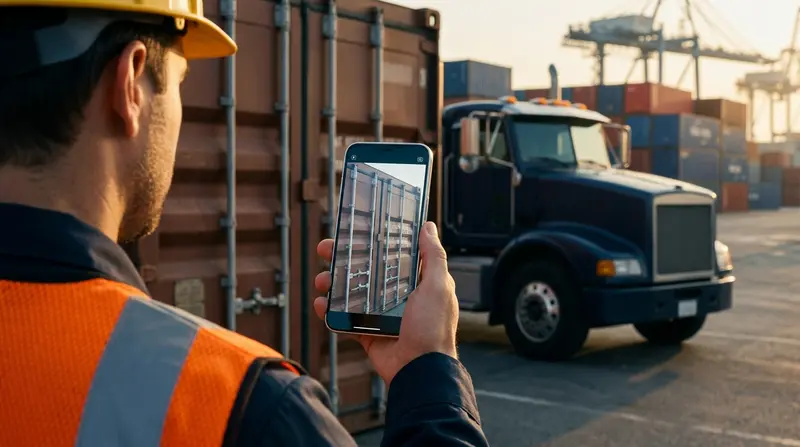
Drivers open a link in the phone’s browser and add the app to the home screen. After that it sits next to the other apps on the phone. Because it is hosted, dispatchers and drivers see the same loads, and you do not have to ask drivers to install or update anything from a store.
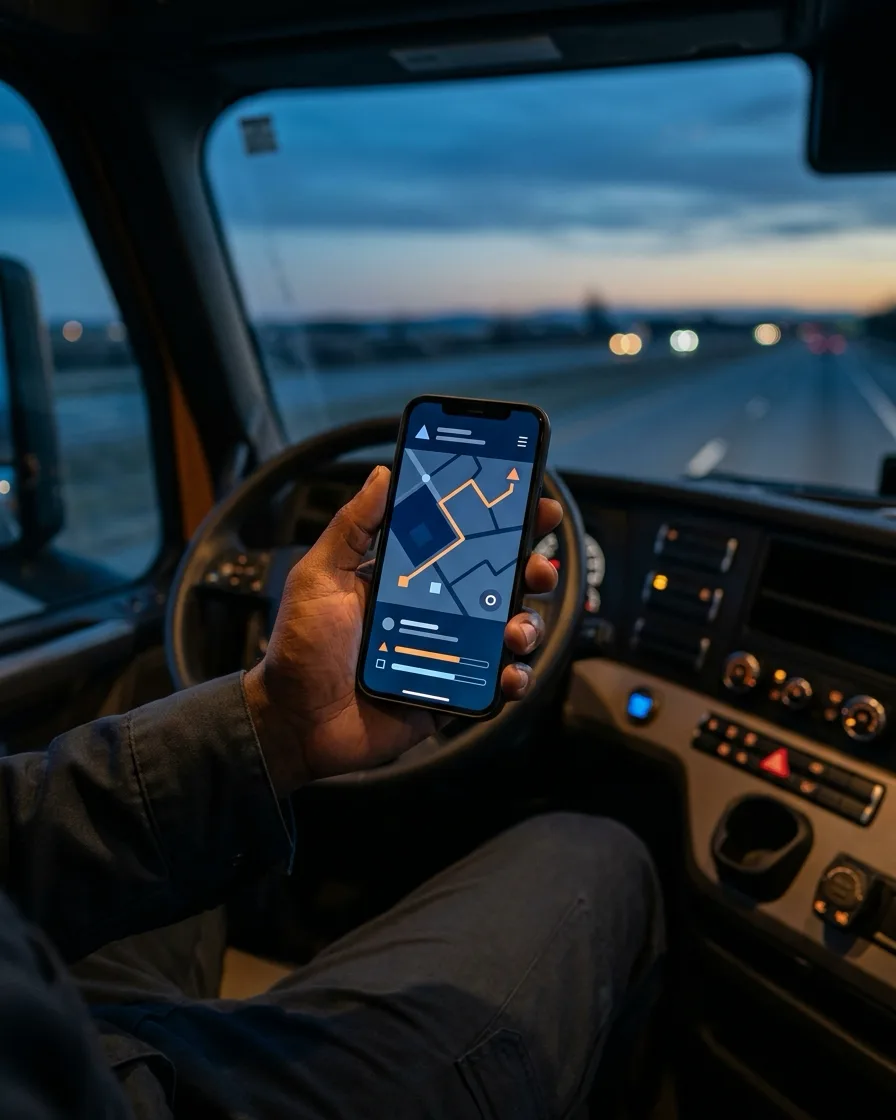
The driver app and GPS are part of every plan, including Lite. Drivers can choose Google Maps, Apple Maps or Waze for directions, and the app sends their location to the live map.
Load Control
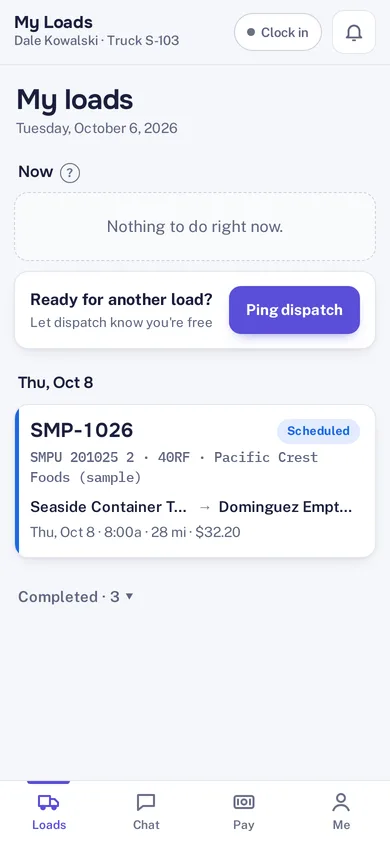
The home screen is My Loads. It shows clock in, a Ping dispatch button, the scheduled move and a bottom bar with Loads, Chat, Pay and Me. A move lists its stops and documents, with a to-do list before leaving. Drivers can accept, decline (with a reason) or tap on my way on each move, and clock in before starting one. Those last two are options you switch on.
Alerts are read aloud with a chime, with quiet hours and a choice of voice. Spoken alerts play while the app is open on screen. A locked phone gets the normal notification sound, because phones do not let a web app talk in the background. Chat with dispatch is on each load, and a Ready for a load ping carries a note.
Offline
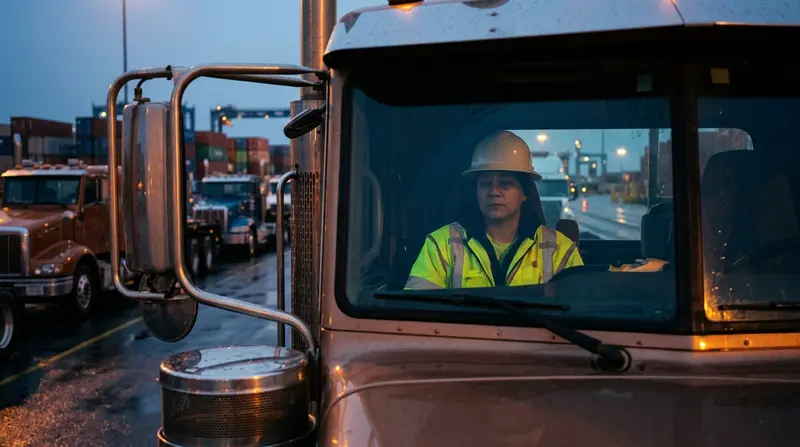
Ports are not known for good signal. Photos, signed PODs and PDFs are saved on the phone and uploaded when signal returns, so a driver can finish the paperwork at the gate and move on. Clock in and out also works without signal.
The Pay tab shows settlements, deductions and PDF statements, which ties back to driver settlements. Free chassis are picked from your equipment list, which feeds the chassis management records.
How it works
Step 1
Open the link in the phone’s browser and add the app to the home screen.
Step 2
Open My Loads to see the scheduled move, its stops and its documents.
Step 3
Take photos and sign the POD. They are saved on the phone and uploaded when signal returns.
Step 4
Chat with dispatch on the load and hear alerts read aloud while the app is open.
The driver app is a web app, so a locked phone gets the normal notification sound rather than a spoken alert.
Try it
The best test of a driver app is a driver. Ask two or three of yours to add it to their home screen and use it for a few real moves. Their opinion will tell you more than any feature list. Driver logins are free, so this costs nothing during the trial.
Questions
No. The app opens in the phone’s browser and can be added to the home screen. There is nothing to install from an app store.
Photos, signed PODs and PDFs are saved on the phone and uploaded when signal returns. Clock in and out also works without signal.
Spoken alerts play while the app is open on screen. A locked phone gets the normal notification sound, because phones do not let a web app talk in the background.
Driver logins are free on every plan, and the driver app and GPS are included in every plan.
Yes. The Pay tab shows settlements, deductions and PDF statements. Settlements are part of the Medium plan and above.
Start a trial, add a few drivers and try a week of moves.